
For: Bursar, Finance officer, Accountant
Bursar
Setting the fees, billing a term, taking payments, the cash office, money spent and the school’s accounts — for the bursar or finance officer.
Your home screen
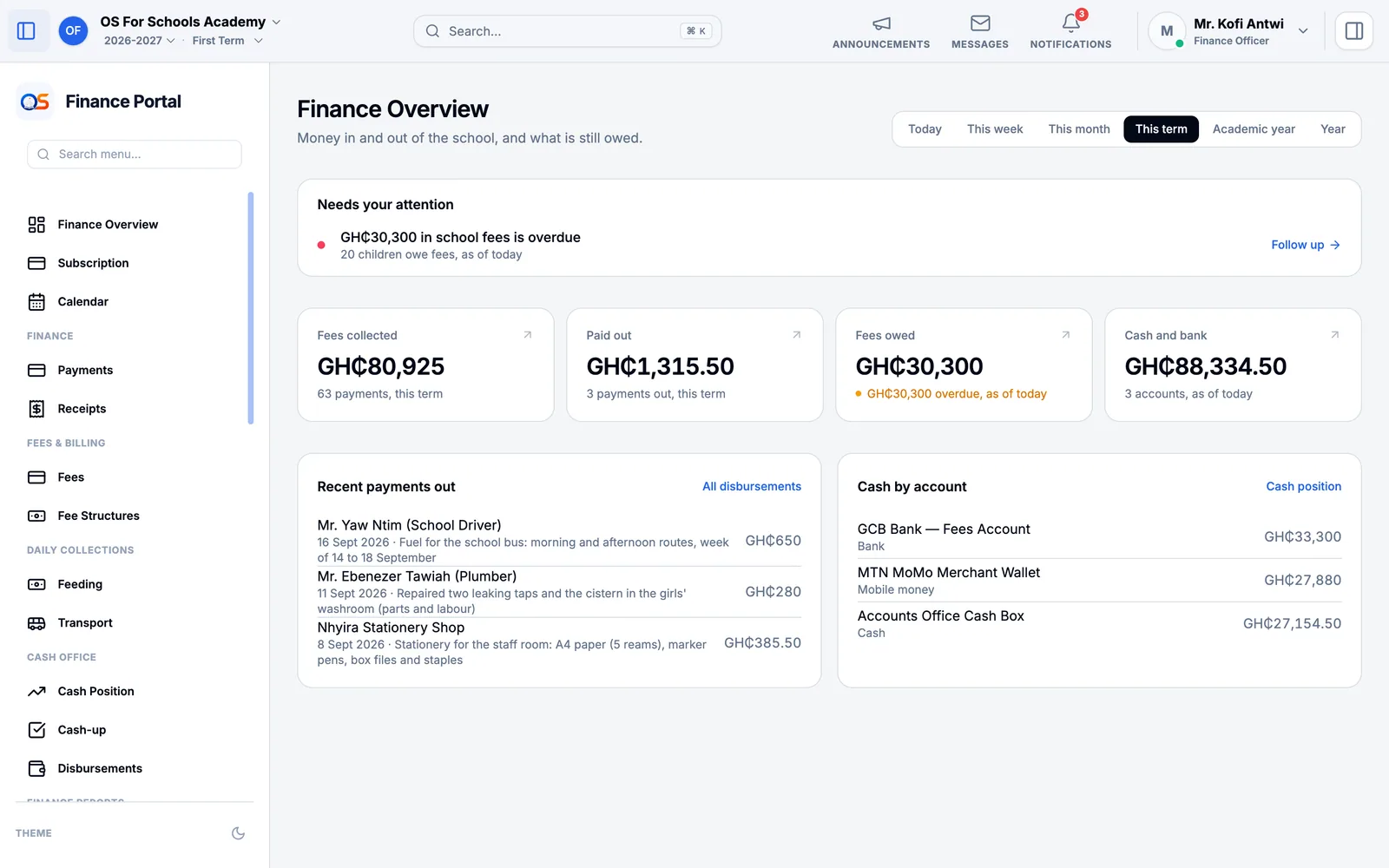
Finance Overview is the money at a glance: fees collected, money paid out, fees still owed and how much of that is overdue, and what is in each account — the cash box, the bank, the MoMo wallet. Choose the period at the top. Needs your attention lists what is late, with a button to follow it up.
Set the fees
Every fee the school charges lives in Fee Structures: tuition, PTA dues, levies, the examination fee, admission and boarding fees, and daily feeding and transport rates.
Press New Fee Structure. Give the fee a clear name (Tuition, ICT Levy), its amount, whether it is charged per term or once, which classes pay it, and the date it must be paid by.
Save it, then press Publish. Publishing bills every pupil the fee applies to — and every pupil who joins those classes later, automatically.
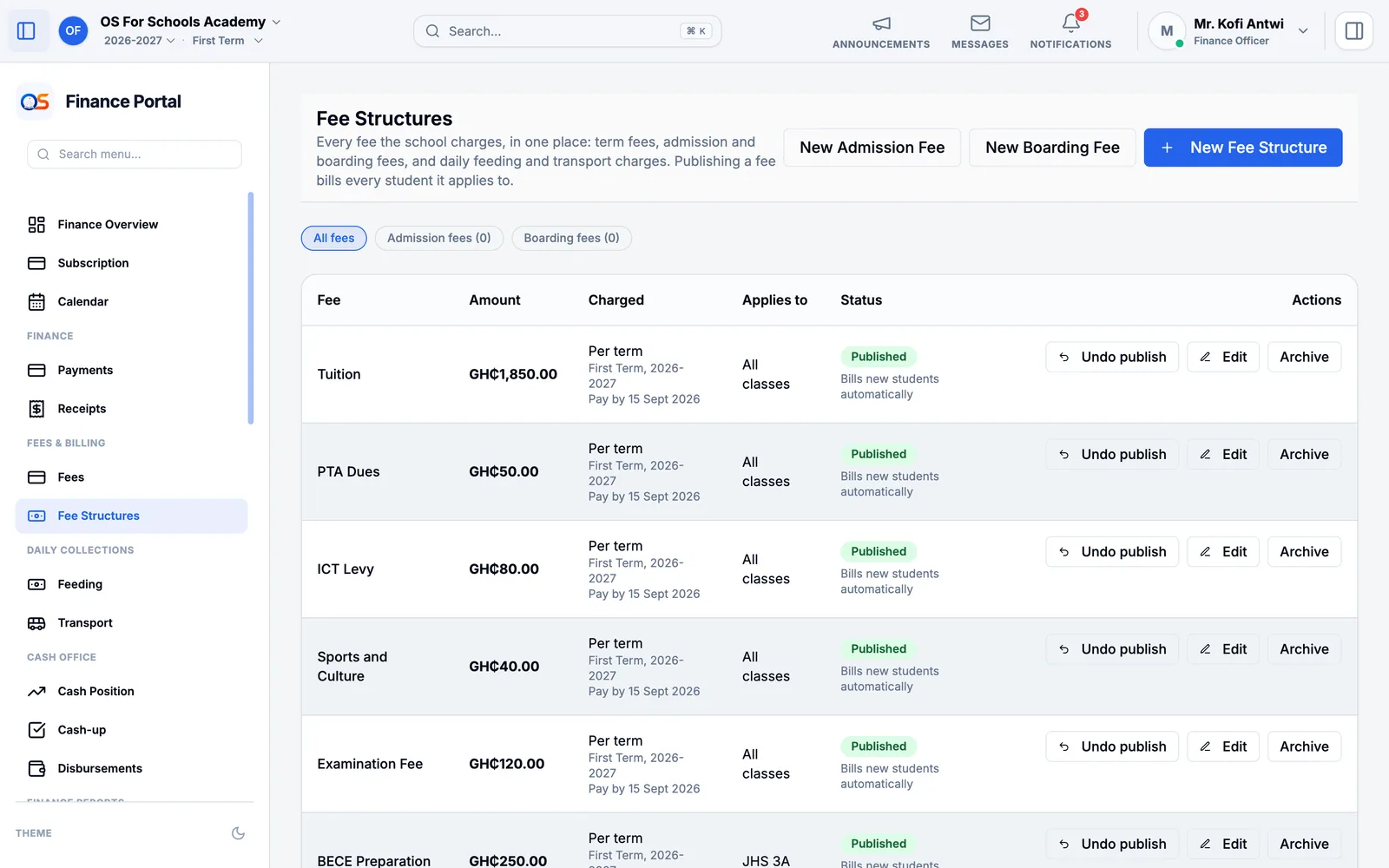
Made a mistake? Undo publish takes the fee off the bills it made. A child who has already paid towards it keeps it on their bill until they are refunded — the screen tells you who.
Bill a term
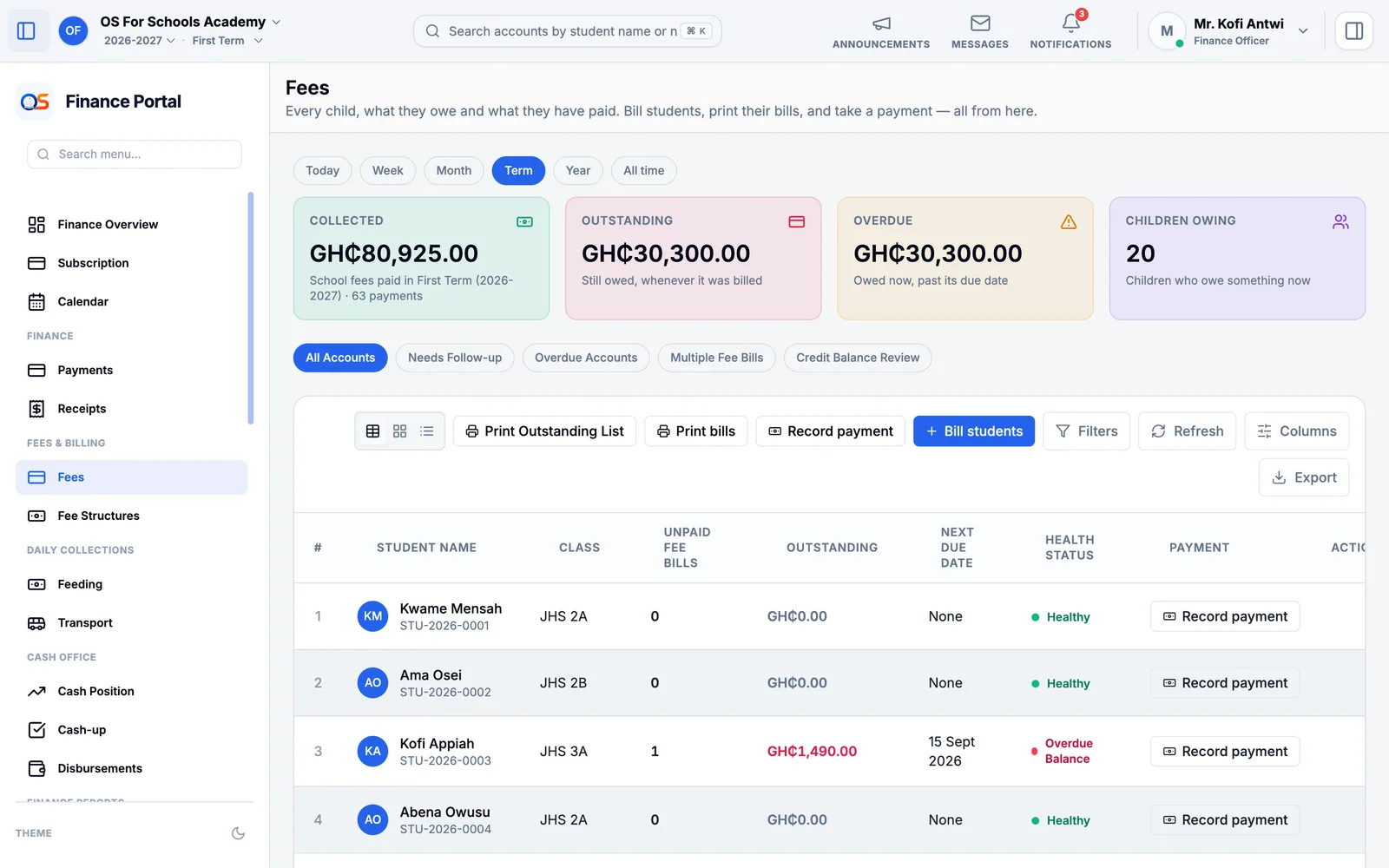
Publishing a fee bills the pupils it applies to. When you need to bill a class for several fees at once — the start of a term, or a class that joined late — open Fees and press Bill students.
Under Who to bill, choose a class, all classes, or one pupil.
Set Pay by, the date parents must pay by.
Tick the Fees to bill and start. You can leave the page: the bills are made in the background, and the Fees page shows when they are ready.
Press Print bills for one page per pupil, ready to hand to parents or send home in their bags.
Take a payment
On Fees, press Record payment beside the child. (For a child not on the screen, press Record payment at the top and find them by name or number.)
Type the Amount received. It is shared across the child’s bills, oldest first — or press Pay all in full. Anything over what is owed is kept as credit for the next bill.
Choose the Payment Method — cash, MTN MoMo, Telecel Cash, AirtelTigo, bank transfer or cheque — and where the money went, under Deposited Into.
For Mobile Money or a bank transfer, type the transaction reference from the parent’s message, and who paid.
Save. The receipt is ready at once, to print or send to the parent.
Parents can also pay from their own phone, by card or Mobile Money: their payment appears here by itself, with its receipt. Payment Settings holds how parents pay online.
Follow up what is owed
- Collections & Arrears shows what each class owes and for how long, and which families to call first.
- Print Outstanding List on the Fees page gives the class teacher or the head a list of who still owes.
- Fee reminders go to parents by SMS and in the app. Which reminders go out, and when, is set in Parent Notices.
The cash office
- Cash Position
- What is in each account now — the cash box, the bank account, the MoMo wallet — and the Cash Book: every payment in and out of an account, with a running balance.
- Cash-up
- The daily count. In the morning, enter the cash already in the box (the starting cash, kept for change); at closing, count the cash and enter it. OS for Schools shows what should be there and any difference, and the day is closed.
- Other Money In
- Worship offerings, donations, hall hire and any other money that is not a pupil’s bill, each with a receipt. Money held for someone else — the chapel’s offering — is kept apart from the school’s income and handed over from Cash Position, Money held. A mistake is reversed with a reason, never deleted.
- Disbursements
- Money going out — fuel for the bus, a plumber, stationery. Record what was paid, to whom and why; the owner, principal or headteacher approves it before it counts.
Reports and the accounts
All Reports holds the term’s financial statements — income and spending, and the balance sheet — ready to print for the board. Reconciliation checks the payments parents made online against what the payment company reported. Under Accounting, the General Journal, Chart of Accounts and Financial Periods are for the accountant; close a period when its books are final, so nothing can change behind you.
Before the first payment
Add the school’s accounts in Bank Accounts: the cash box, each bank account and the MoMo merchant wallet, with the balance each held on the day you start.
Choose where parents’ online payments go in Payment Settings.
Set up the term’s fees in Fee Structures and publish them.